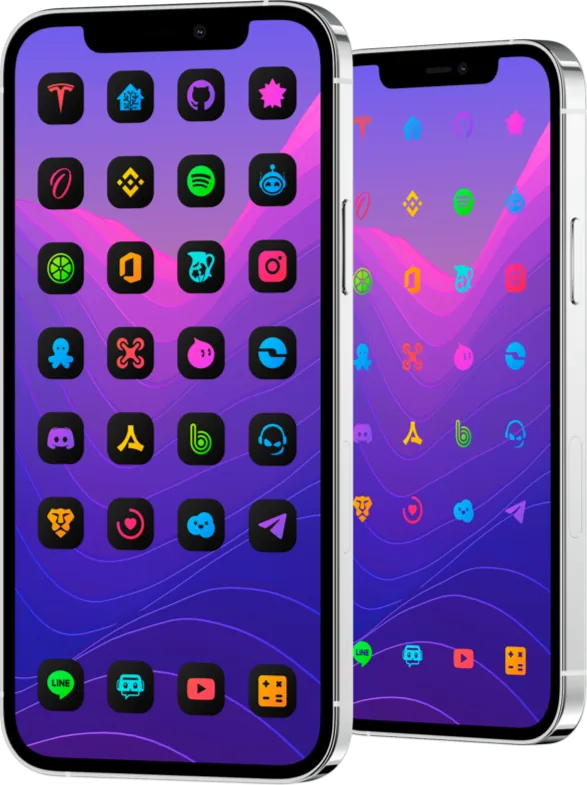
How to choose a DarkBoard icon style for iPhone
DarkBoard for iOS ships six icon styles in one package, each with more than 2350 app icons. They split into two families: the Original styles keep the colour of each app’s symbol, and the Dark styles turn the symbols black or white. Pick the family that suits your wallpaper first, then the style that keeps the icons readable on it. DarkBoard for iOS
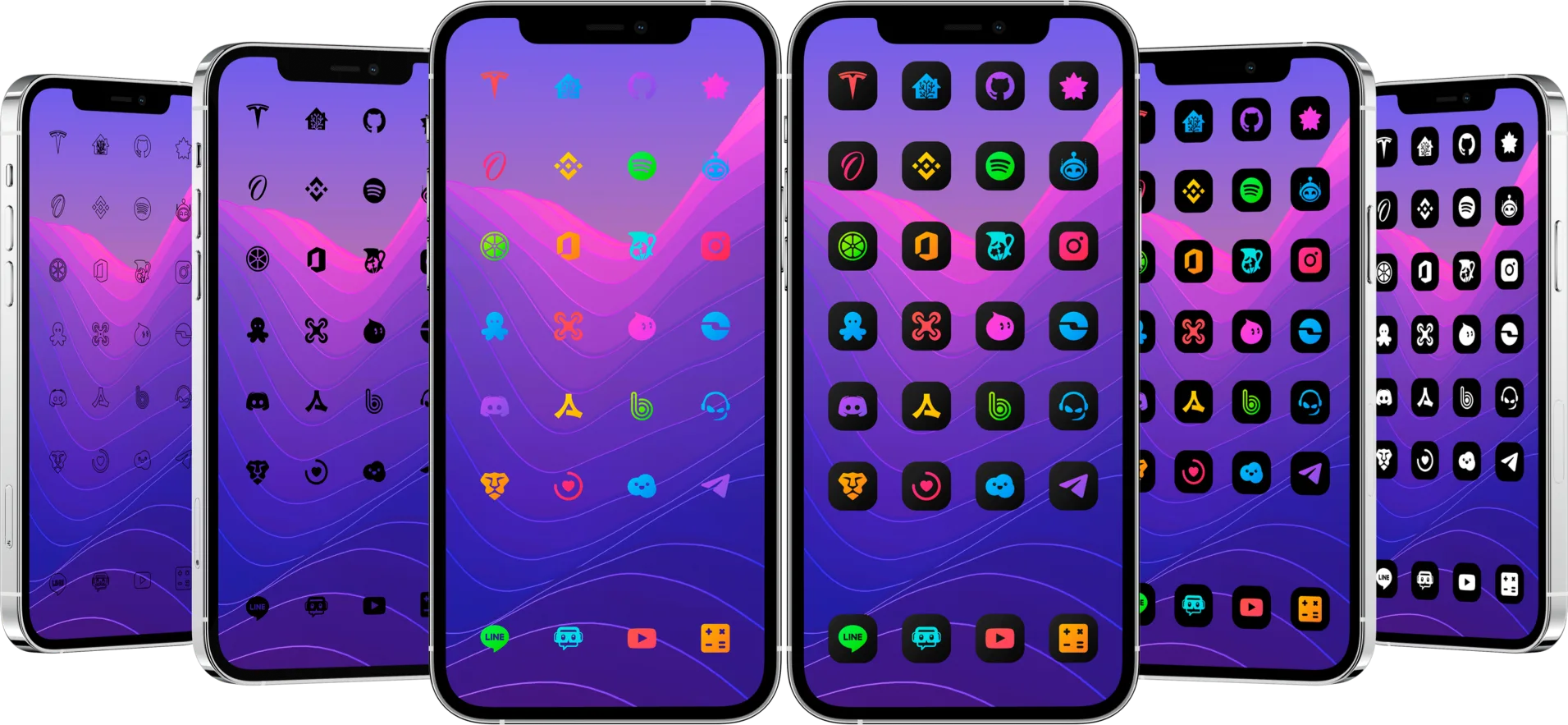
The six styles
The Havoc listing names the six styles of the package:
| Style | What it looks like | Works best on |
|---|---|---|
| Original Gradient | Each app’s symbol in its own colours, on a dark rounded tile | Busy or bright wallpapers |
| Original TrueDark | Coloured symbols on a black tile | Dark and OLED-friendly setups |
| Original Glyphs | Coloured symbols with no tile | Plain or soft wallpapers |
| Dark Glyphs | Black symbols with no tile | Light or mid-tone wallpapers |
| Dark Borders Glyphs | Outlined symbols with no tile | Minimal setups with plenty of contrast |
| Dark White | White symbols on a black tile | Any wallpaper, with the strongest contrast |
Styles with a tile keep the same shape behind every icon, so they read well on any wallpaper. Glyph styles leave the wallpaper visible between the symbols: they look lighter, but they need a wallpaper with enough contrast.
Compare them on your own Home Screen
Keep the same wallpaper and the same apps while you compare, so only the style changes. In SnowBoard, open the theme list, enable one DarkBoard style at a time, respring and look at a full page of apps you use every day. Check three things:
- Contrast. You should recognise each app without looking for its label. If a symbol blends into the wallpaper, move to a style with a tile.
- Labels. Dark tiles and black symbols make white labels stand out; a very light wallpaper can wash out Dark White labels instead.
- Coverage. If an app keeps its original icon, that app may be missing from the theme. Ask for it from the Requests section of DarkBoard in the Settings app, using the email of your purchase.
Add colour with the extension packages
Buying DarkBoard gives free access to its three extension packages. They add 30 gradients you can apply to any app icon, so you can keep a calm style and highlight only a few apps. Extension packages
Check what your theme engine supports
App icons, respring logos, shapes and boot logos work with SnowBoard and with Anemone 3. Alternative icons, badges and the Settings interface need SnowBoard: Anemone 3 does not apply them, and it adds Apple Watch app icons instead. If you are not sure that your iOS version and engine are supported, follow the compatibility checks first. How to check if a SnowBoard theme works on your iPhone
If you prefer light icons
LightBoard is the light edition, with 5 styles and the same number of icons. Compare both on the iOS page. Icon themes for iPhone and iPad
